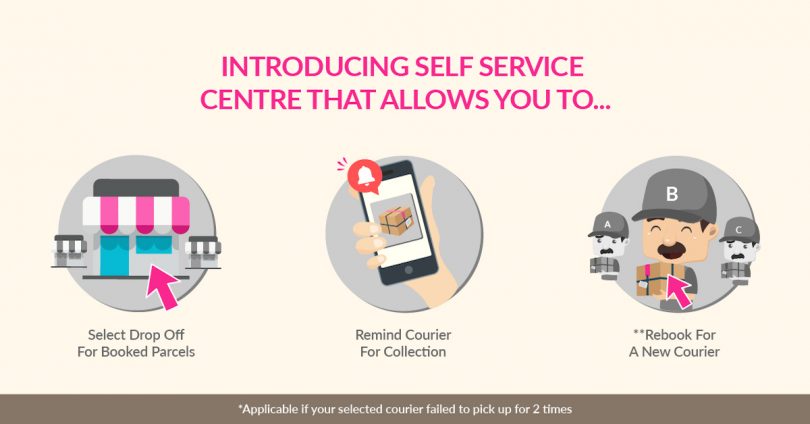
In order to improve your online booking experience, we are in the midst of upgrading our online customer service with a brand new design and feature – let’s say a big hello to the Self Service Centre!
With this new tool, you can now manage all your shipments online with just a few clicks. The best news is we’ll not charge any cents on you for this! No longer you need to camp in front of the laptop to wait for a reply from our support team, you are allowed to:-
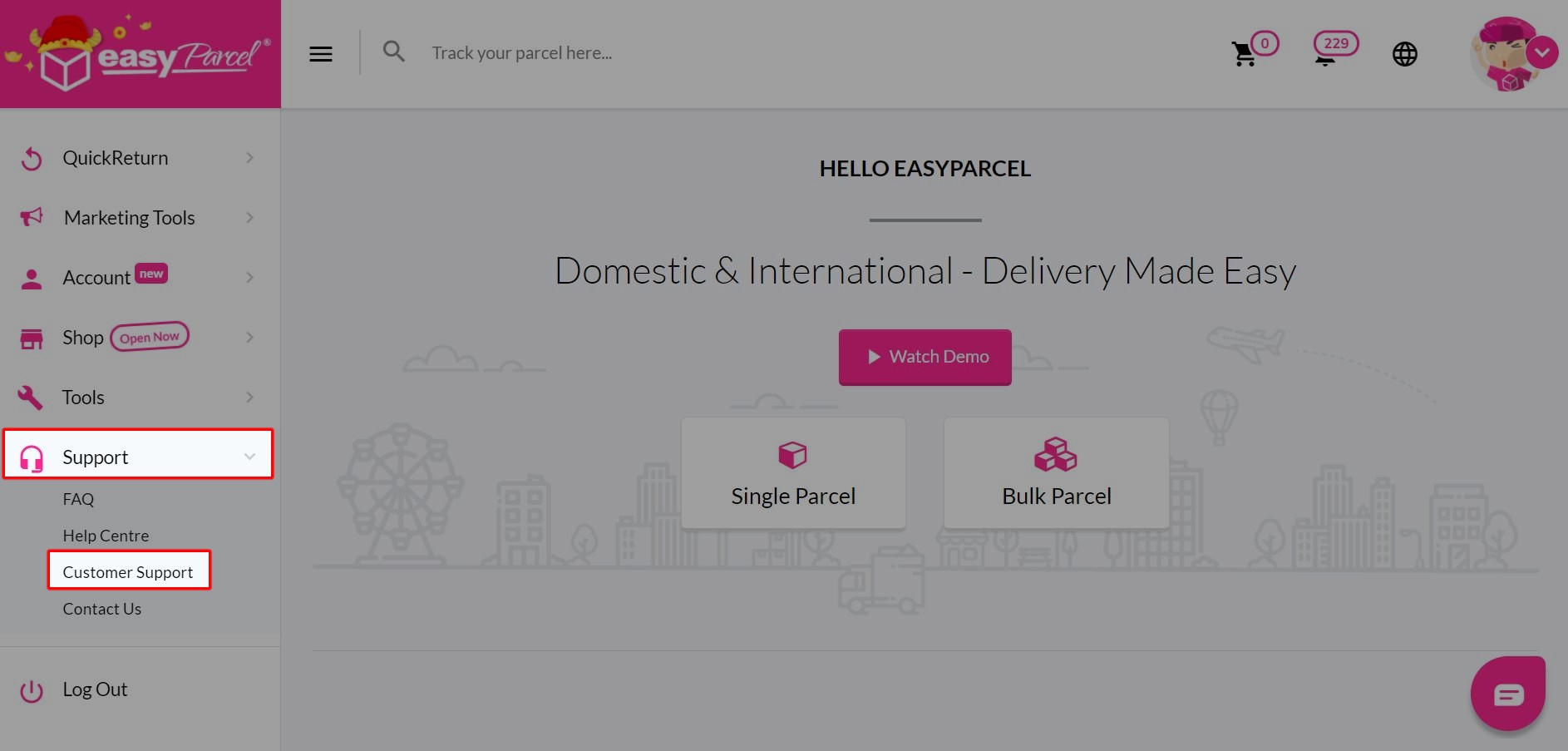
Step 1: Go to “Support” on the sidebar and click on “Customer Support”.
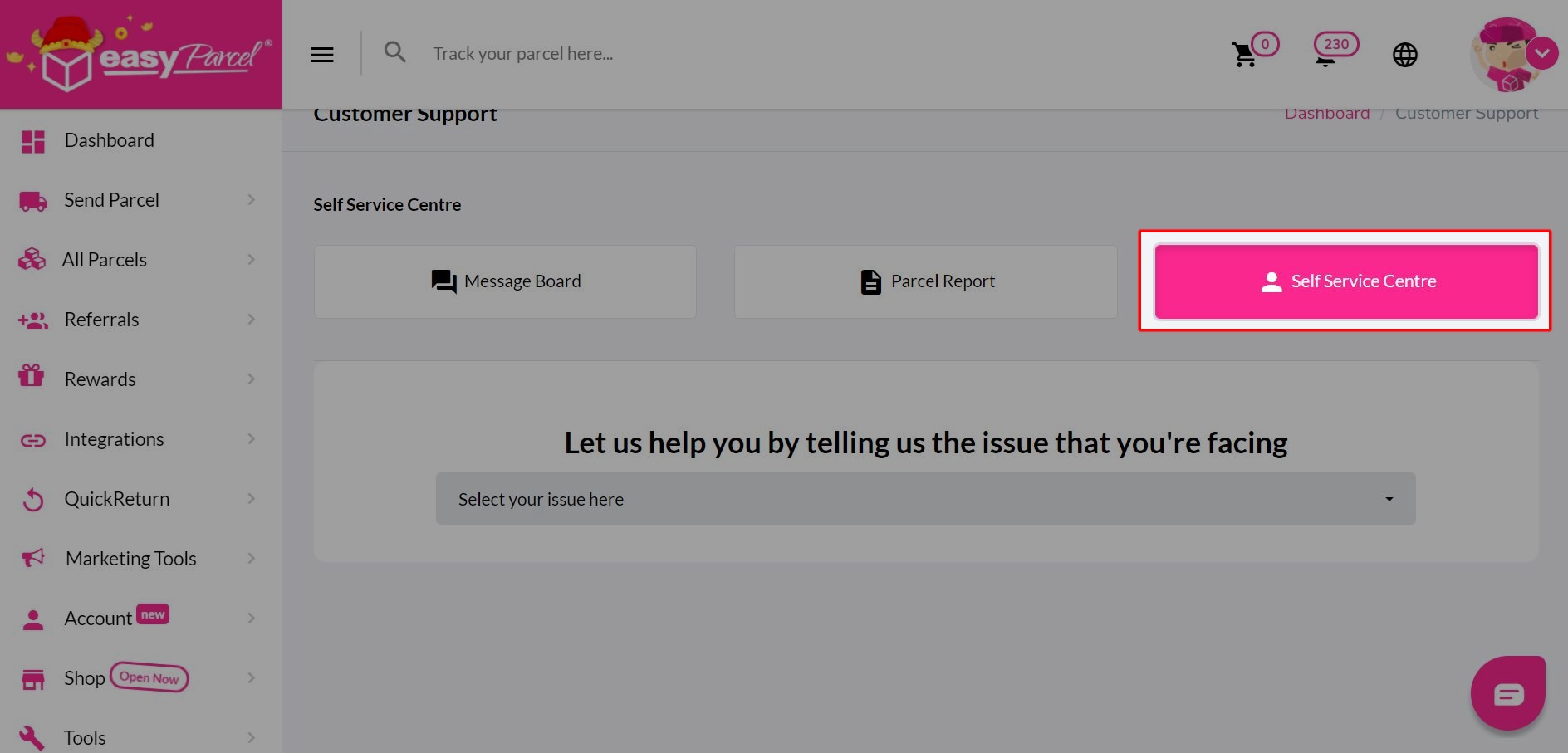
Step 2: Click on “Self Service Centre”.
Step 3: Select “Parcel not collected” from the drop-down list.
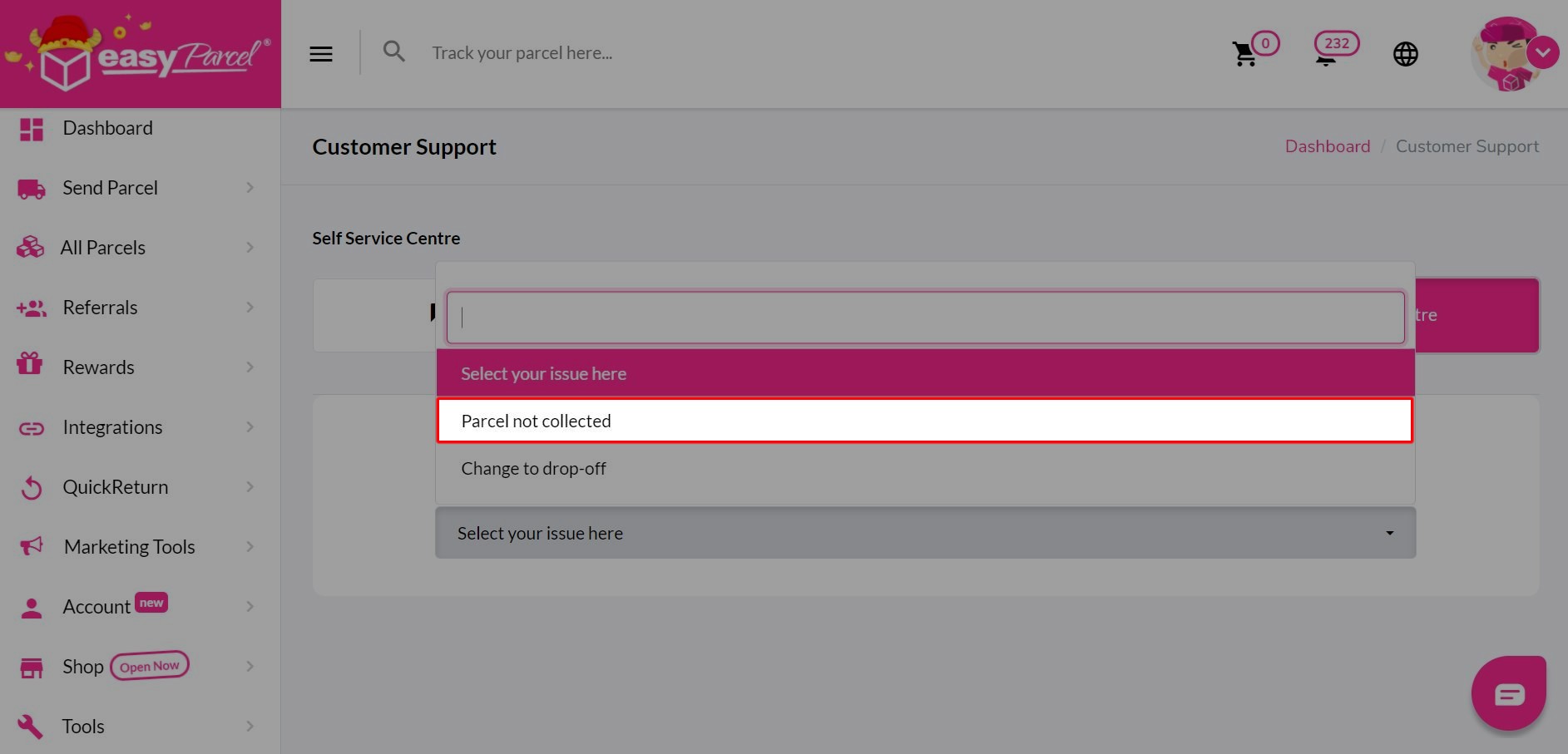
Step 4: Click on “Drop-Off” to continue.
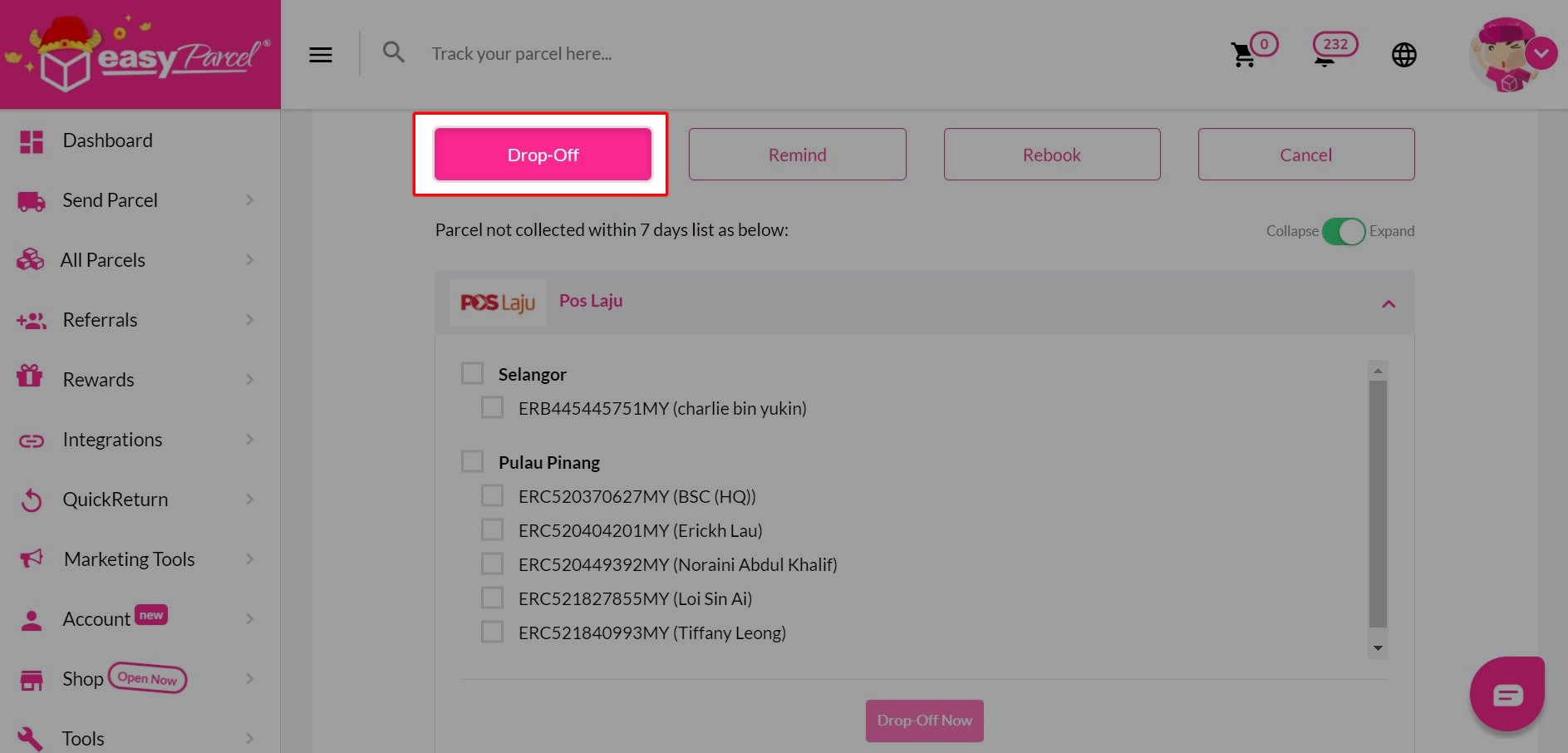
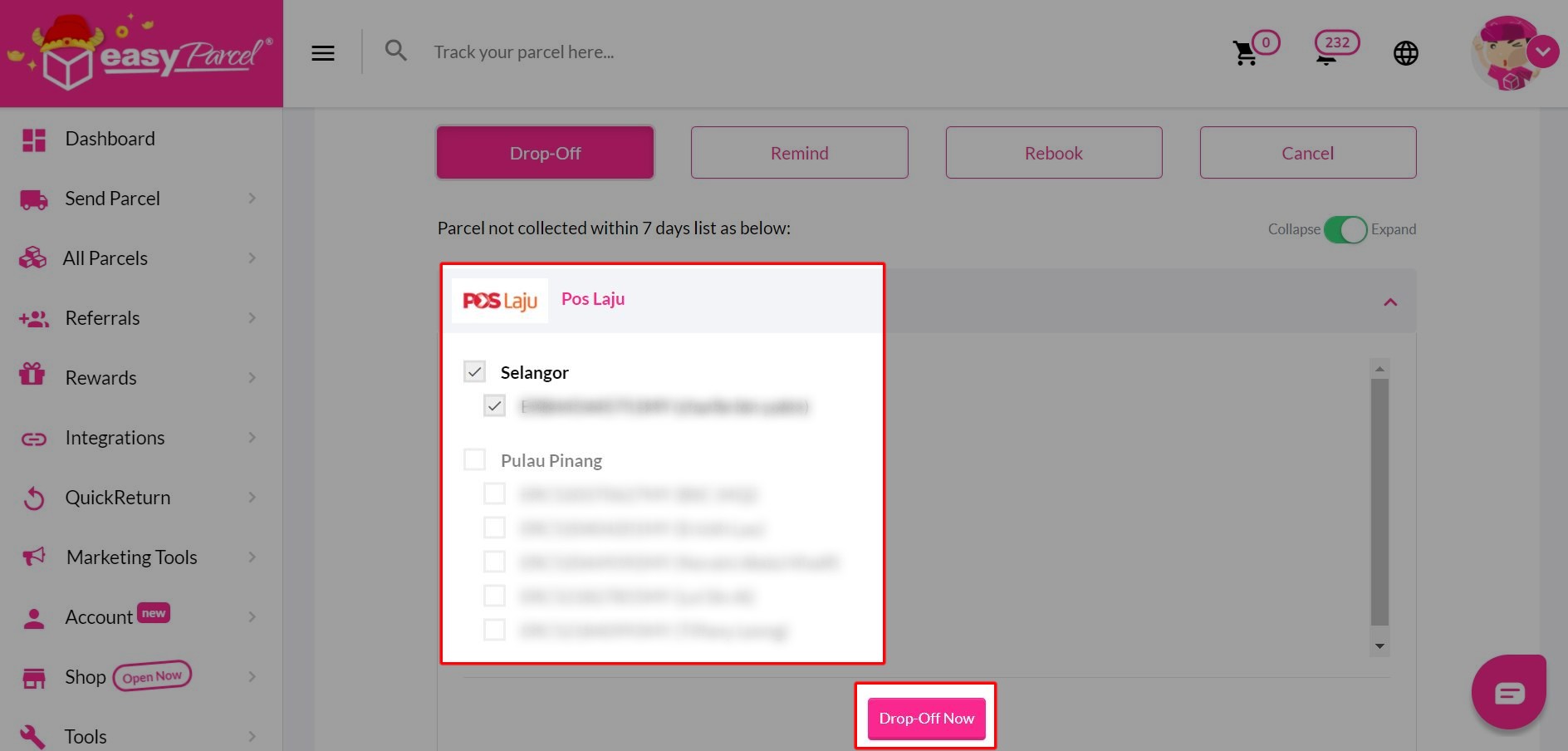
Step 5: Select whichever parcel you want to change and click on “Drop-Off Now”.
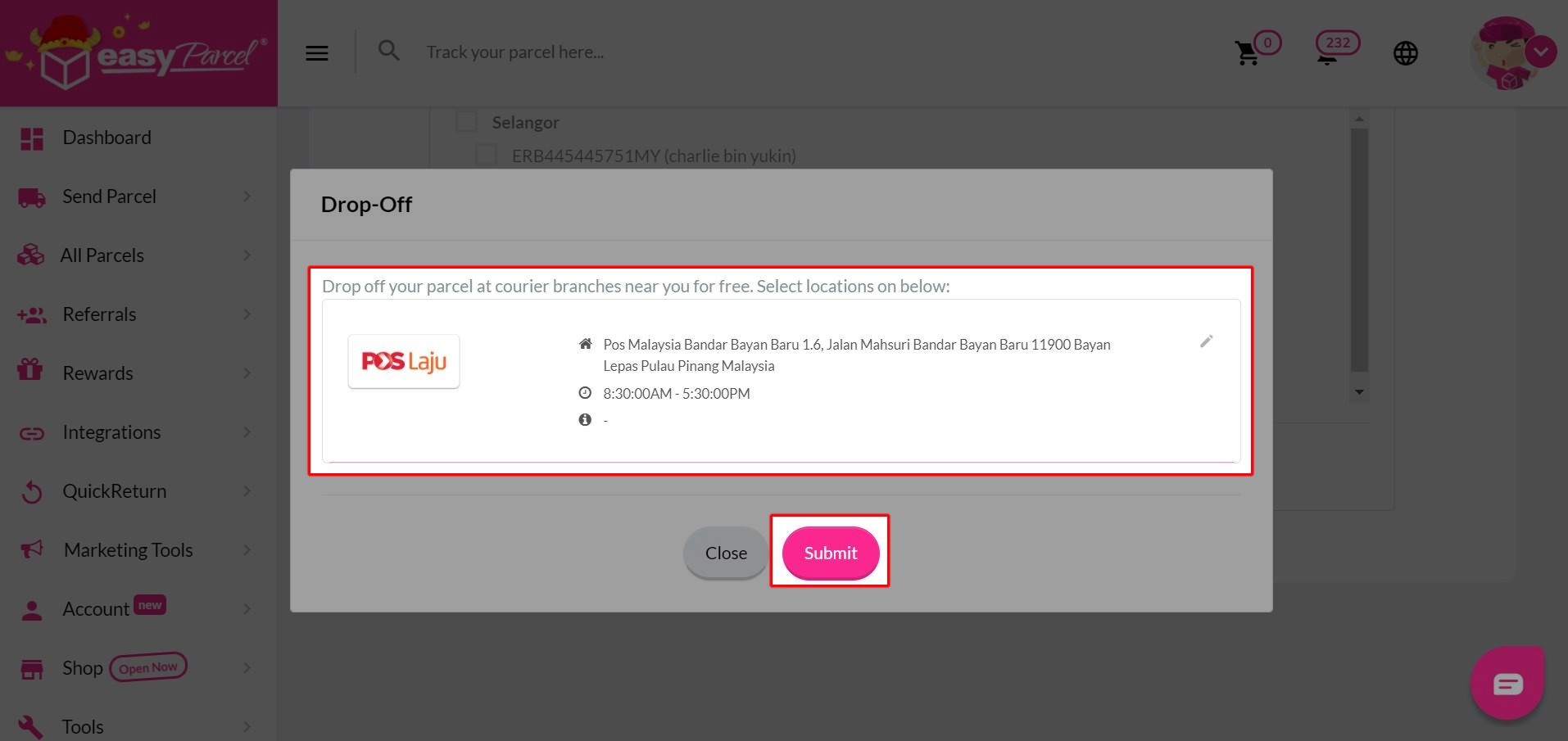
Step 6: Select any drop-off point that available to you and click on “Submit”.
Step 1: Go to “Support” on the sidebar and click on “Customer Support”.
Step 2: Click on “Self Service Centre”.
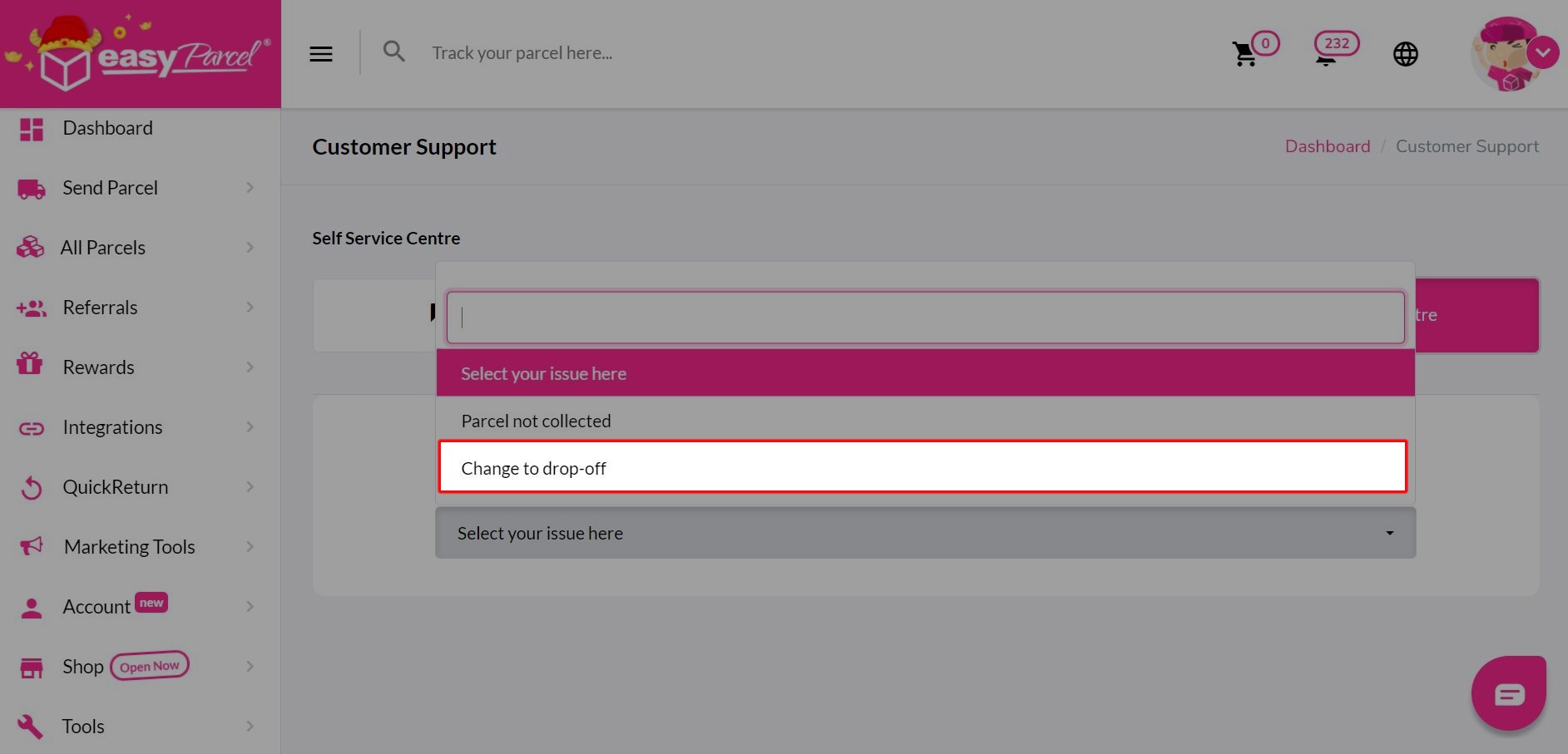
Step 3: Click on “Change to drop-off”.
Step 4: Click on “Drop-Off” to continue.
Step 5: Select whichever parcel you want to change and click on “Drop-Off Now”.
Step 6: Select any drop-off point that available to you and click on “Submit”.
Step 1: Go to “Support” on the sidebar and click on “Customer Support”.
Step 2: Click on “Self Service Centre”.
Step 3: Select “Parcel not collected” from the drop-down list.
Step 4: Click on the “Remind” tab.
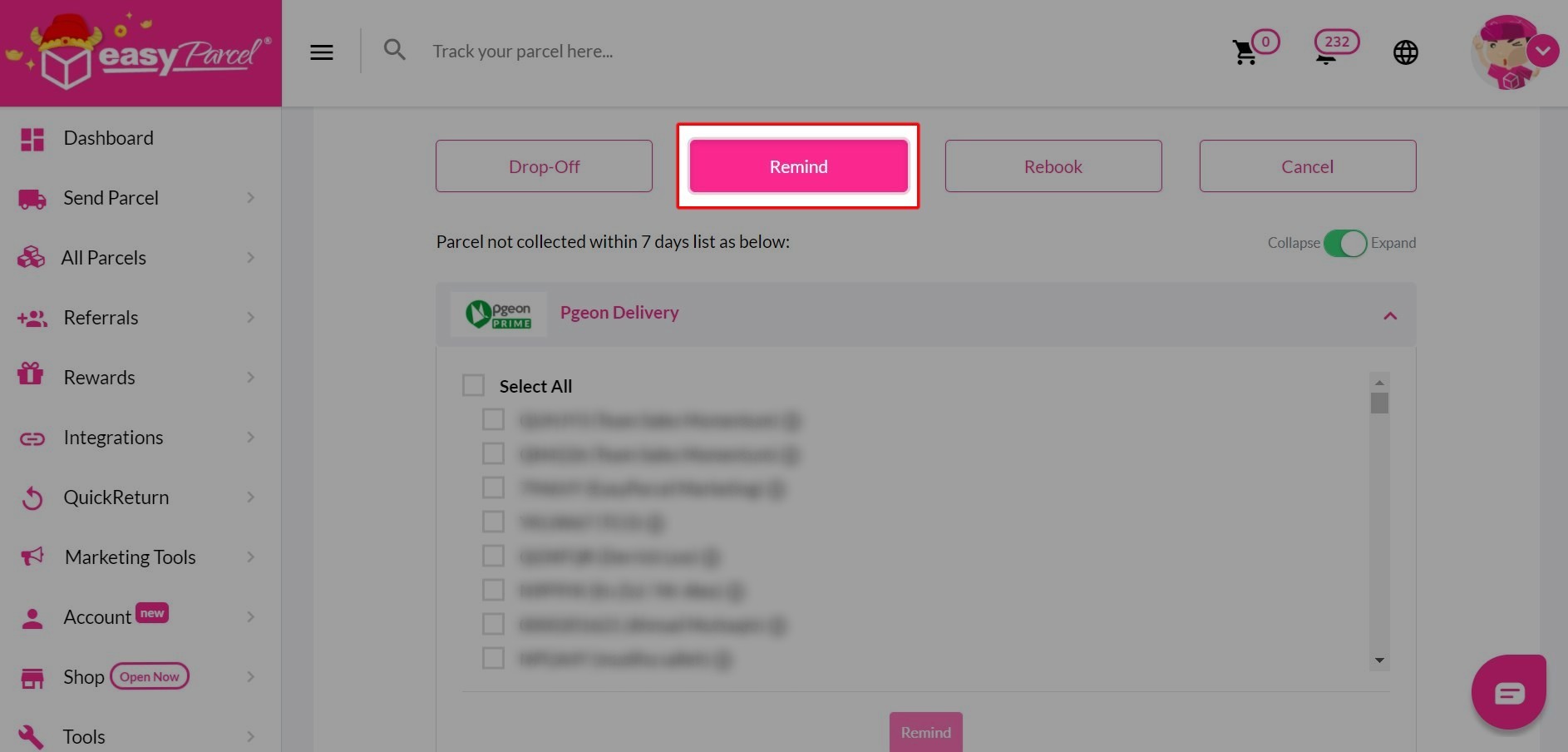
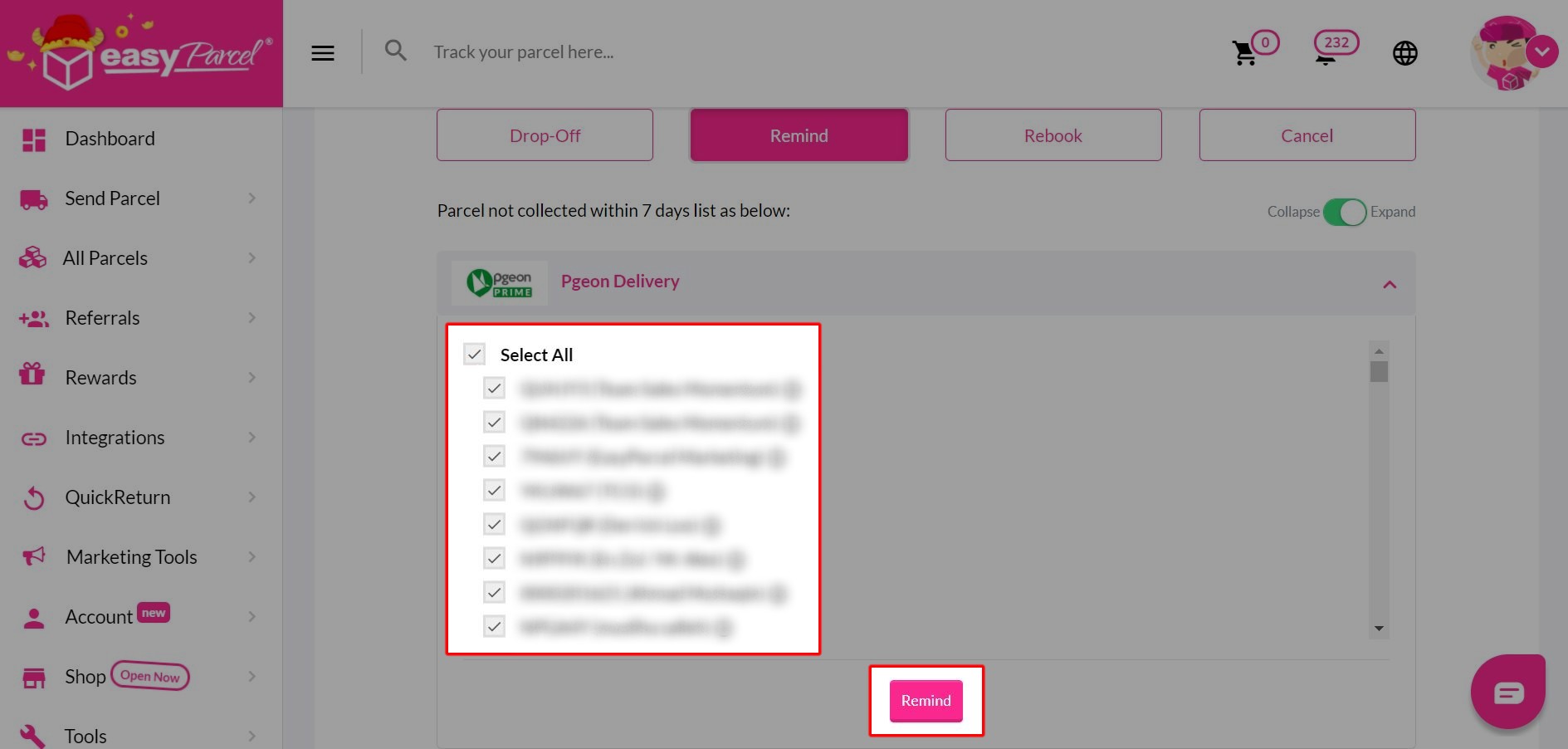
Step 5: Select whichever parcel you want and click on “Remind”.
Step 1: Go to “Support” on the sidebar and click on “Customer Support”.
Step 2: Click on “Self Service Centre”.
Step 3: Select “Parcel not collected” from the drop-down list.
Step 4: Click on the “Rebook” button.
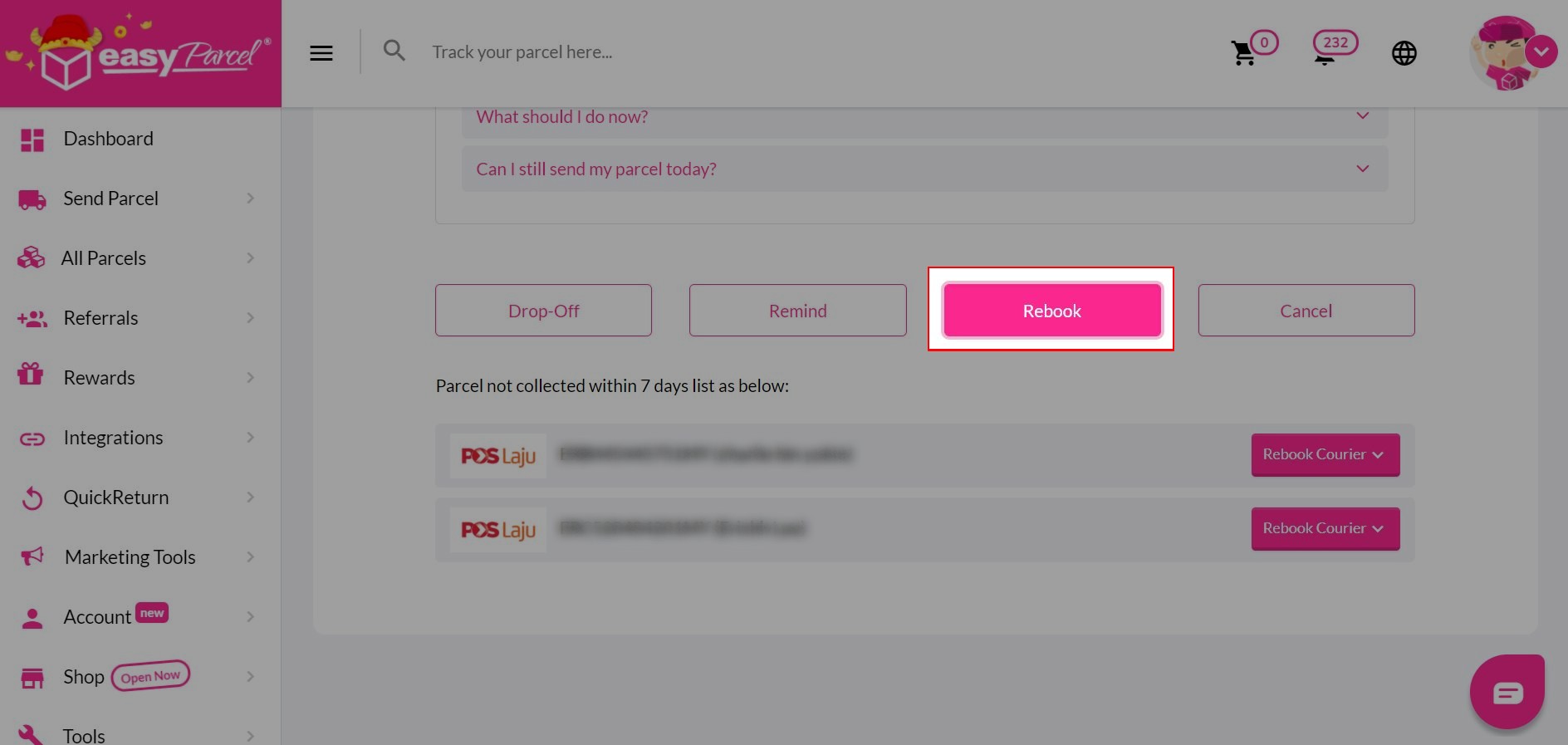
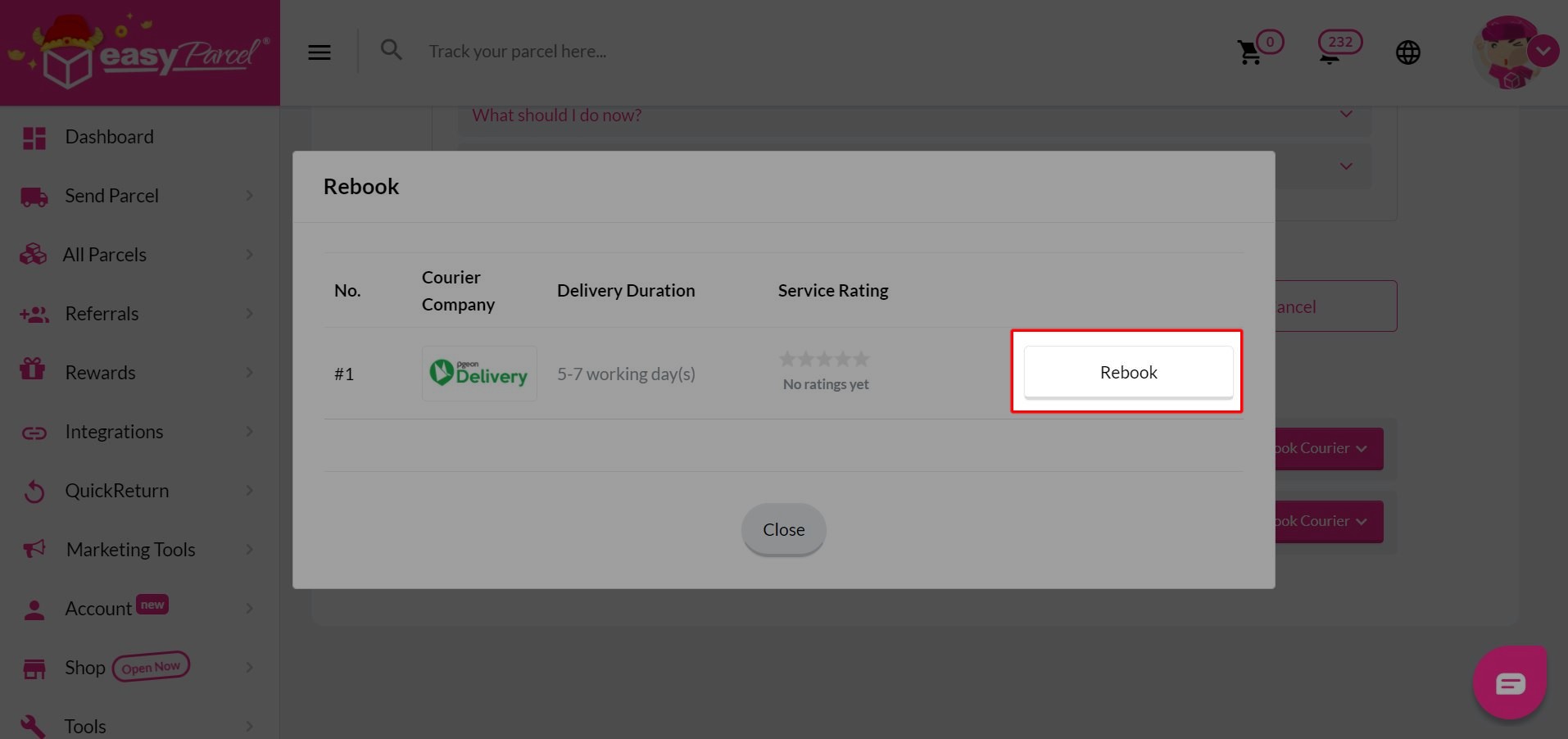
Step 5: Pick the courier that available for you and click on “Rebook”.
Step 1: Go to “Support” on the sidebar and click on “Customer Support”.
Step 2: Click on “Self Service Centre”.
Step 3: Select “Parcel not collected” from the drop-down list.
Step 4: Click on the “Cancel” tab.
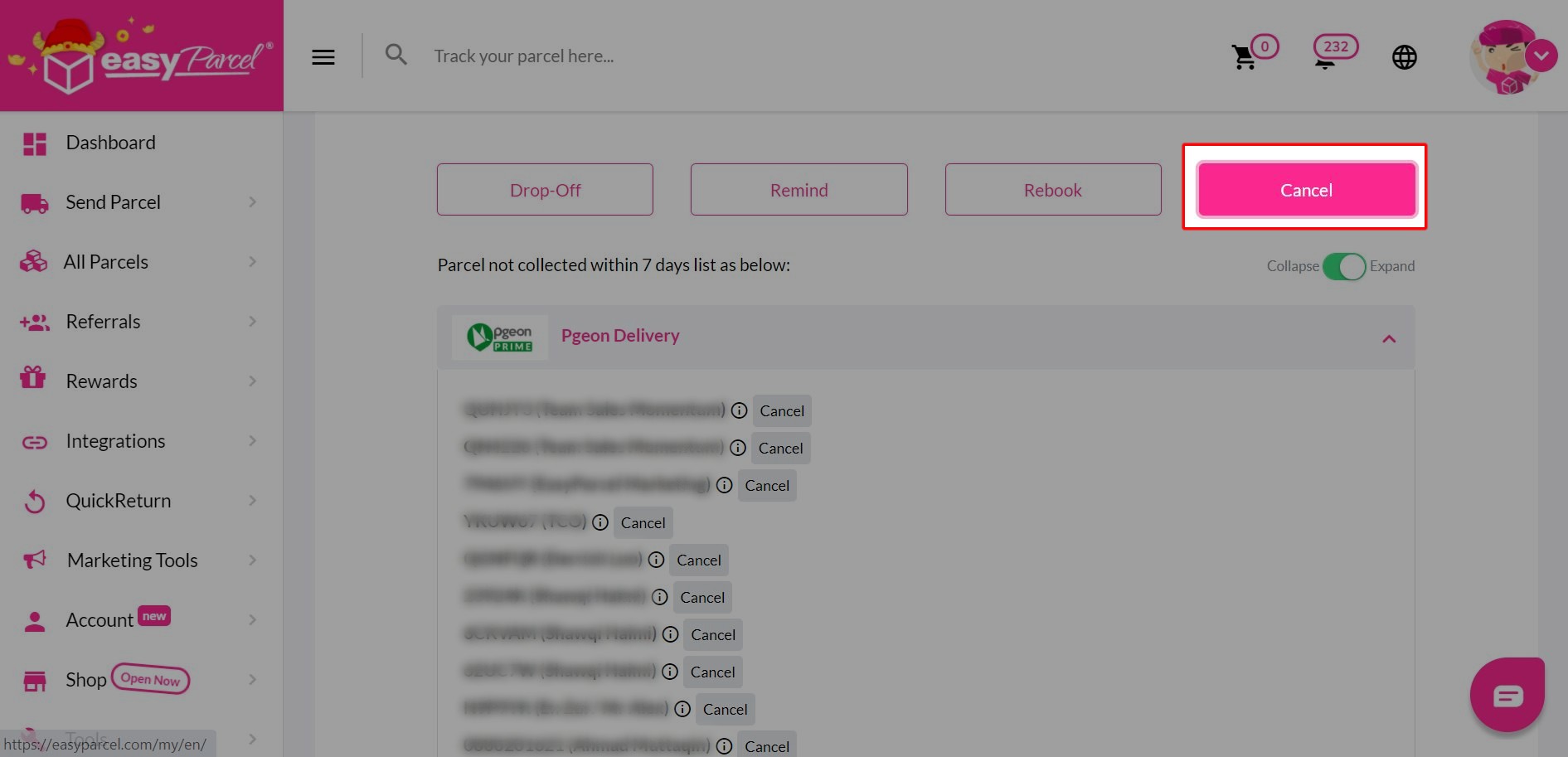
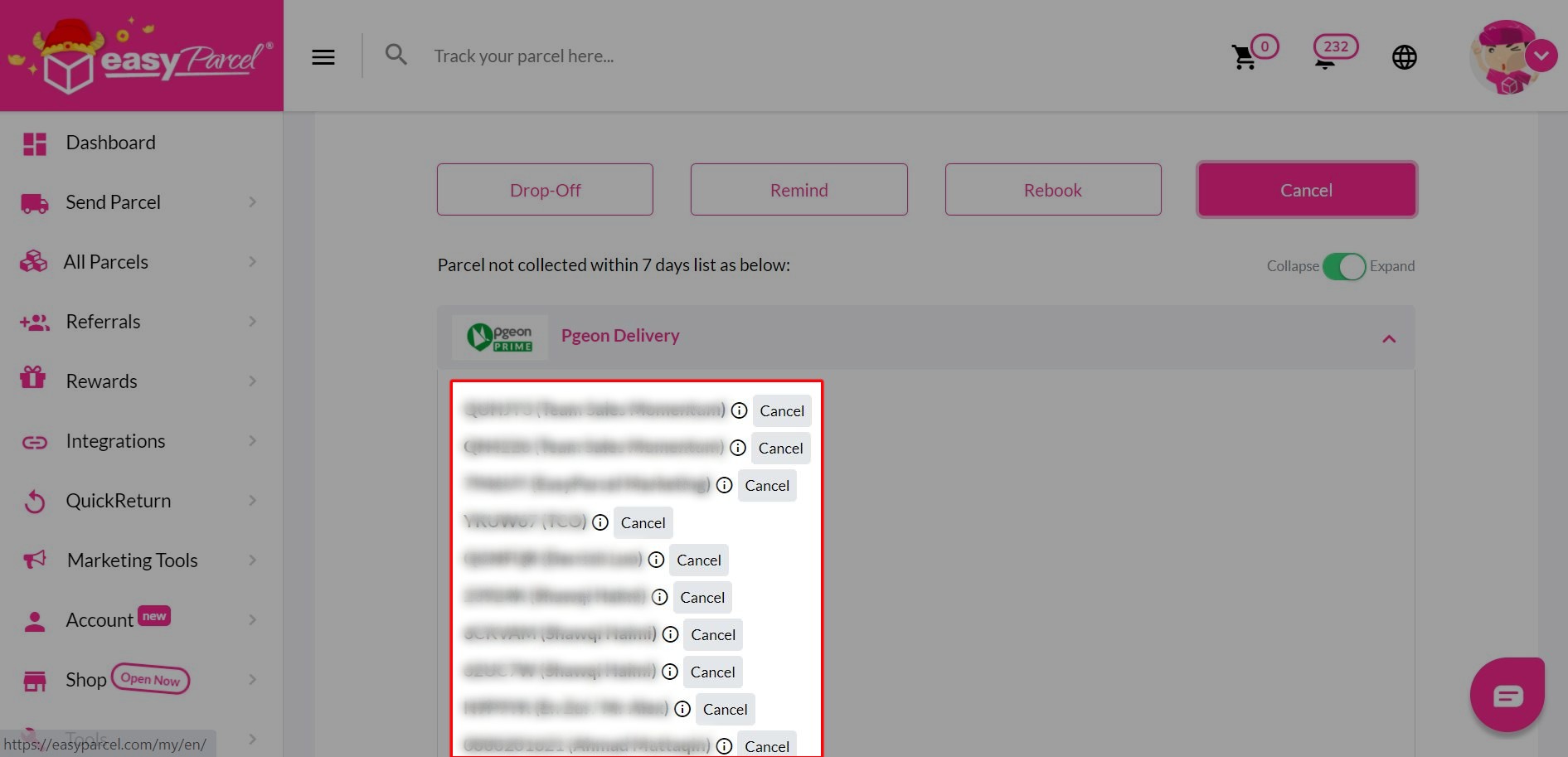
Step 5: Click on the “Cancel” button for whichever parcel that you’d like to request for cancellation and refund.
Have a full control over your shipments today!